
How to build a website with AI
A practical Mibbi guide: write a brief, generate your first draft, refine your pages and check your website before publishing.
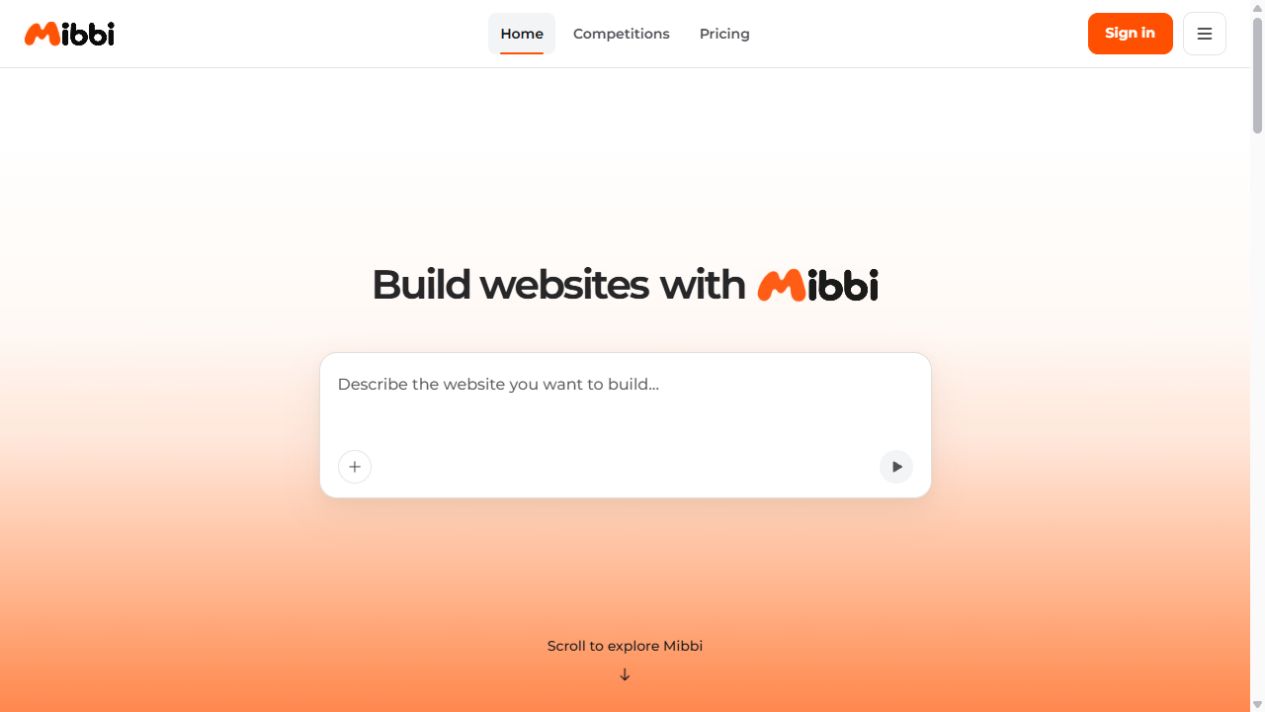
1. Describe the website you want
Open Home in your workspace and explain what the website is for. You can start with a short idea, then add the audience, pages and most important visitor action. Your own business details and pictures make the brief more useful.
For example: Create a three-page website for an independent garden designer. Include Home, Services and Contact. Use forest green, warm white and large garden photography. Explain the design process and leave placeholders for my contact details. Do not invent reviews or awards.
You do not need to write the page code to start. Tell Mibbi what you want in ordinary language. If you have a particular style in mind, describe its typography, spacing and image direction. Only upload files and pictures you have permission to use.
2. Choose your account and build mode
Sign in with Google or email to save your projects. A verified account can choose Continue for free to receive 200,000 welcome credits once, with no payment card needed. Publishing requires a paid builder plan.
Use Plan to work through an idea before building. Standard is the usual build mode; Max adds reasoning for more complex requests. Check the credit estimate before sending a request. The cost varies with the work, so a credit balance does not represent a fixed number of websites.
An AI build or revision can use credits. Direct text edits, copying a project and restoring a saved version do not start an AI build.
3. Review the first draft against your brief
Look through every generated page. Check that the website explains what you actually do and gives visitors the action you asked for. Check your navigation, services, project names and contact information.
A polished layout is only part of a finished website. AI can make mistakes, add a claim you did not supply or leave a form that still needs setup. Replace placeholders with accurate details and remove unsupported claims before sharing.
4. Refine the design without restarting
Ask for a focused revision and say what should stay. For example: Keep the page structure and forest-green palette. Make the services section easier to scan, use larger garden photographs and reduce the heading size on phones.
For a small wording change, choose Edit website text in the preview toolbar. Select the words, edit them and save. Saving creates a new version; the live website changes only when you publish it.
If a revision takes the design in the wrong direction, return to an earlier saved version. Keep a copy of important content outside the browser while you work.
5. Check desktop and mobile layouts
Preview the site at both wide and phone widths. Read the headings, open the navigation and make sure buttons remain easy to use. Look for text or images that overflow and check that important content is not clipped.
Click each navigation link and main action. Test any form and check where its submissions actually go. An email link, a connected form and a booking service are different features; check the one your website uses.
Review colour contrast, readable text, image descriptions, keyboard access and permissions to use your pictures. Do not treat an attractive preview or an automated check as proof that everything works.
6. Publish the version you are happy with
Publishing needs an active paid builder plan and a free slot within its published website allowance. Open Publish, review the checks and choose the saved version to put online.
Use the Mibbi-hosted link or connect a domain you own and have permission to use. Buying a domain is separate. If the website uses a Supabase database, review its access rules and test with appropriate records before accepting real visitor data.
Open the published link as a visitor and repeat the main checks. Confirm you see the right version, that the navigation works and that your contact route is usable. You can download website files where the export option is available.
7. Keep improving the website
You can keep editing after launch. Make changes in your draft, preview the result and publish updates when ready. A saved draft does not automatically replace the public website.
Keep an eye on your credit balance, subscription dates and shared hosting allowance. Running out of AI credits pauses new AI work; it does not by itself take a published website offline. Read the plan and hosting guides for the separate limits.